
Changing your name on WhatsApp is a two-minute job on every platform: open your profile, select your name, type a new one, and save. The field holds 25 characters, and it is not the same thing as your WhatsApp username.
This guide gives the current route for how to change name on WhatsApp on Android, iPhone, WhatsApp Web, Windows and Mac, taken from WhatsApp's own Help Center instructions for editing your profile. It then answers the question that brings most people back a day later: why somebody can still see the old name.
One caution before the steps. WhatsApp updates its interface between versions and rolls changes out unevenly, so depending on your WhatsApp version the menu may appear slightly differently. Icons move more often than labels do. The order of the steps has stayed stable even when the wording around them has not.
It is worth separating the two questions people arrive with. One is mechanical — where the field is and how to save it. The other is social, and harder: who actually sees the name you set, and why a friend can still be showing your old one a week later. Both are answered below, because knowing how to change name on WhatsApp is only half of what most people came for.
How to Change Name on WhatsApp: The Quick Method
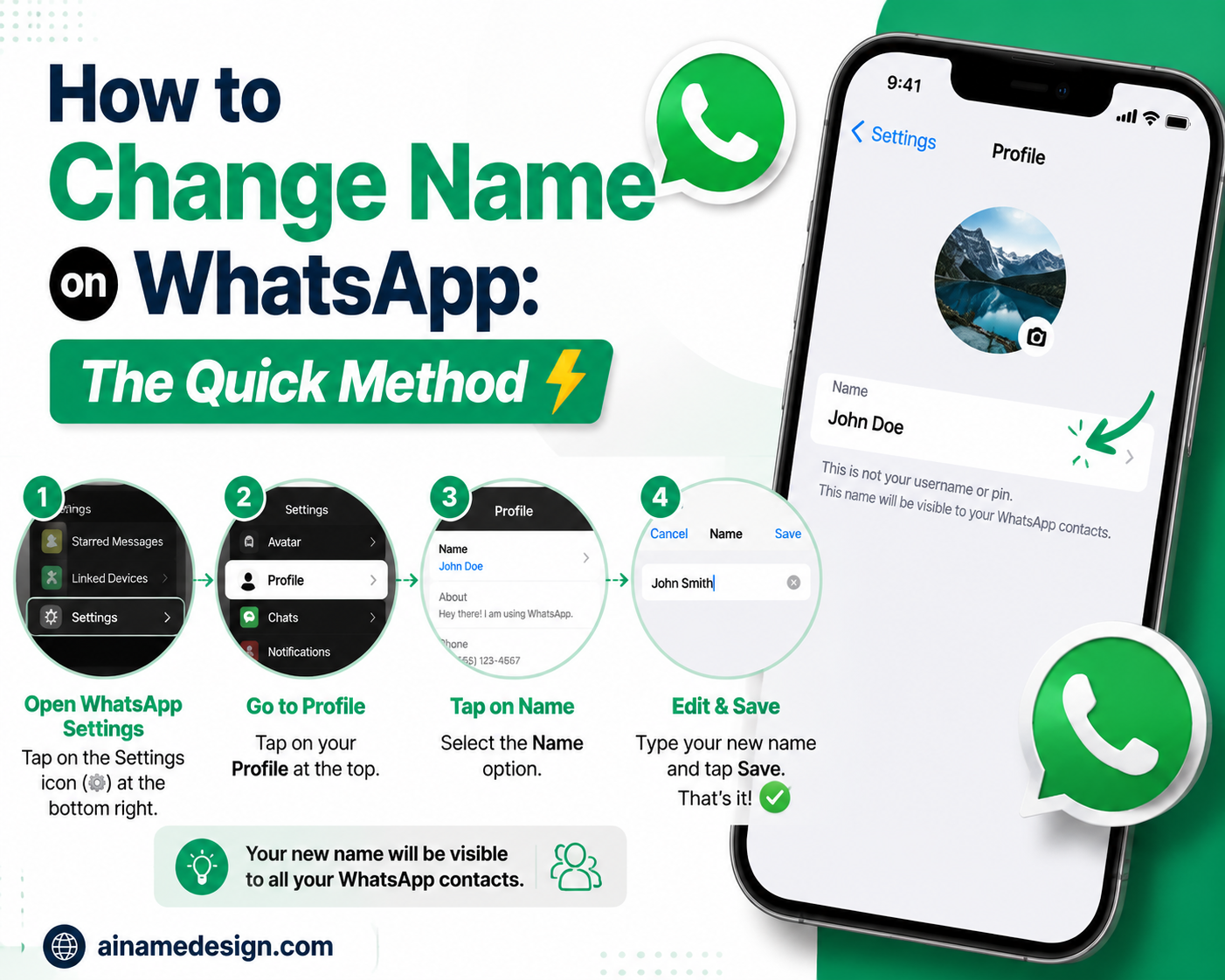
The shortest version works on every platform, because the route is the same shape everywhere. You are looking for your own profile, not the settings for a chat.
- Open WhatsApp.
- Open your profile — on mobile this is your profile picture, on desktop it is your profile photo in the top corner.
- Select your name, or the edit control beside it.
- Clear the old name.
- Type the new one, up to 25 characters.
- Save.
There is no confirmation email, no review period, and no restart required — the change takes effect on your profile as soon as it saves.
The differences between platforms are small and cosmetic. On mobile you reach your profile from your picture or from Settings; on a computer you reach it from your profile photo in the corner. Everything after that point is the same field with the same 25-character limit. What follows is the exact route for each, so you can skip to the one you need.
How to Change Your WhatsApp Name on Android
The Android route to change name on WhatsApp runs through Settings, and WhatsApp's current documented path starts at the More options menu — the three dots in the top corner of the chats screen.
- Open WhatsApp and tap More options (the three-dot icon), then tap Settings.
- Tap your profile picture, then tap Name.
- Enter your new name. The limit is 25 characters.
- To add emoji, tap the emoji icon in the name field.
- Tap Save.
The emoji step is worth noticing. WhatsApp puts an emoji control inside the name field itself on Android, which means you do not have to switch keyboards to add one — useful, because the system keyboard sometimes inserts a variant that renders differently.
If your build opens a profile card rather than a settings list, tap your picture first and look for the name row — it behaves the same way. Android skins from Samsung, Xiaomi and others do not change WhatsApp's own menus, so the route above holds regardless of the phone.
How to Change Your WhatsApp Name on iPhone
iPhone is the quickest way to change name on WhatsApp of the three, because the current route skips the settings list entirely. WhatsApp's documented steps open the profile directly from your picture.
- Open WhatsApp and tap your profile picture twice.
- Tap your name.
- Enter your new name, up to 25 characters.
- Tap Save.
The double tap catches people out. The first tap opens your profile card and the second opens the editable view, so a single tap can look as though nothing happened. If your version opens Settings instead, tap your profile picture at the top of that list and continue from there.
Worth knowing: WhatsApp's iPhone instructions do not list a separate emoji button for the name field, while the Android and Web instructions do. That is not a restriction on emoji — use the emoji key on the iOS keyboard instead, and the character still lands in the field normally.
How to Change Your WhatsApp Name on Web or Desktop
You can change name on WhatsApp from the Web client and from the Windows desktop app using the same route. Both open the profile from your photo rather than from a settings menu.
- Click your profile photo, then click Profile.
- Click the edit control beside your name.
- Enter your new name, up to 25 characters.
- To add emoji, click the emoji icon.
- Click the confirm control to save.
This is the route to use when you are typing a long or styled name, because pasting from a clipboard is far easier on a keyboard than on a phone. The saved result is identical either way — the profile is one field shared across every device you are signed in on.
The Mac app is arranged slightly differently. Open your profile, click your name, enter the new one, then click Done or Save depending on the version you are running.
One genuine limitation applies here rather than to the name: WhatsApp states that reserving a username is not available on WhatsApp Web or Desktop, and asks you to use your primary mobile device for that. Editing your profile name on desktop is unaffected.
How Many Characters Can a WhatsApp Name Have?
A WhatsApp profile name is limited to 25 characters, and that ceiling applies wherever you change name on WhatsApp. That figure is stated identically in WhatsApp's instructions for Android, iPhone, Web, Windows and Mac, so it is not a platform quirk — it is the limit on the field itself.
It is a real constraint rather than a soft one. The field stops accepting input at the limit rather than warning you, so a longer name does not get truncated on save — it simply never gets typed. If your keyboard appears to stop responding mid-name, count the characters before assuming a bug.
Two things commonly get counted against that limit by mistake. Emoji consume characters like any other character, so a name with three emoji has roughly three fewer letters available. Spaces count too. What does not apply here is the length of your About text, your username, or the contact name somebody else has saved for you — those are separate fields with their own rules.
Can You Add Emojis or Symbols to Your WhatsApp Name?
Yes. WhatsApp's own instructions for editing the profile name include a step for adding emoji on Android, Web and Windows, so emoji in the name field are supported rather than tolerated. A single character beside a plain name is the usual approach:
- Alex ✨
- Luna 🌙
- Sami ⚡
Text symbols generally work as well, but they are worth testing rather than assuming. WhatsApp does not publish a list of permitted characters for the profile name, so no guarantee can honestly be given that every Unicode symbol will render on every device your contacts use. Pick from our emoji collection or the symbol library, save the name, and check how it looks in a chat before keeping it.
Read also: → WhatsApp Name Generator — build a styled name and copy it straight in
Why Hasn't My WhatsApp Name Changed?
If the new name did not take, the cause is almost always one of a small number of things:
- The change was not saved. Leaving the screen without tapping Save discards the edit. Reopen the field and check what is actually in it.
- The wrong field was edited. About sits directly below the name on most builds and is easy to change by accident.
- The name was too long. Past 25 characters the field stops accepting input, which can look like a frozen keyboard rather than a limit.
- The app has not refreshed. Closing WhatsApp fully and reopening it clears a stale profile screen.
- The app is out of date. An older version can present a different profile layout than the current instructions describe.
- You are looking at somebody else's copy of your name. This is the big one, and it has its own section below.
Work down that list in order, because the first three account for most cases and take seconds to check. Reopen the field and read what is actually stored rather than trusting what you remember typing.
What no one can tell you honestly is how long a sync takes. WhatsApp does not publish a refresh interval for profile names, so any specific number you read elsewhere is a guess. If the name is correct in your own profile, the change has been made.
Why Can Someone Still See My Old Name?
Because it is not your name they are seeing. If somebody has saved your number in their phone's contacts, WhatsApp shows them the name they saved. Your profile name never overwrites an entry in another person's address book, and nothing you change on your side will rewrite it.
So who does see the name you set? WhatsApp states that your profile name is visible to people in groups who have not saved your contact information. In practice that means new contacts, group members who do not have your number, and anyone who has deleted you from their contacts. Everyone else sees their own label for you, which is usually the point of having saved it.
This is also why asking a friend to check does not prove anything. If they have your number saved, they are the one group of people guaranteed not to see the change, no matter how long you wait. Ask someone who has never saved you, or check a group where you are not in the other members' contacts.
WhatsApp describes the same behaviour for usernames: people who already have your number saved continue to see the contact name they saved for you. The rule is consistent across both fields.
Can I Change My WhatsApp Name More Than Once?
Yes, and you can do it again after that. WhatsApp's profile-editing documentation does not specify any limit on how often the profile name may be changed, and does not describe a cooling-off period between edits.
It is worth being precise about what that means. The absence of a documented limit is not the same as a published guarantee of unlimited changes, and claims of "unlimited" name changes that circulate online are not sourced from WhatsApp. What can be said accurately is that no frequency restriction appears in the current instructions.
Usernames are documented differently. WhatsApp states that you can change or delete a username at any time, but adds a consequence worth knowing: once changed or deleted, a username may become available for someone else to claim.
WhatsApp Name vs WhatsApp Username
These are two separate fields, and the difference matters because people searching for a name change often want one and edit the other. The profile name identifies you. The username is a unique handle that lets people reach you without your phone number.
| Feature | Profile / display name | Username |
|---|---|---|
| What it is | The name shown on your profile and beside your messages | A unique identifier, shown in the form @Name123 |
| Must it be unique? | No — any number of people can use the same name | Yes — unique to your account |
| Character limit | 25 characters | Not published by WhatsApp |
| Availability | Available to everyone now | Rolling out gradually; may not be available to you yet |
| Phone number | Does not affect who can see your number | Keeps your number hidden from people who do not already have it saved |
| Where it is set | Any platform, including Web and Desktop | Reserved from your primary mobile device only |
A few points from WhatsApp's documentation on usernames are worth carrying away. A phone number is still required for the account. The username always appears with an @ in front, which is how people tell it apart from a display name. And people who already have your number saved can still reach you by it.
For anyone researching how to change name on WhatsApp, the practical takeaway is this: if you want a different name on your profile, edit the profile name. If you want people to reach you without handing out your phone number, that is the username, and it is a separate feature with a separate rollout.
If the option to create or reserve a username is missing from your settings, that is expected rather than broken — WhatsApp is rolling the feature out gradually, and recommends updating the app and checking again.
How to Choose a Good WhatsApp Profile Name
Twenty-five characters is less room than it sounds, and a WhatsApp name has an unusual audience: family, work groups and delivery drivers all see the same field. A few practical constraints:
- Stay recognisable to people who only know your real name.
- Keep it readable at a glance — this name appears in a crowded list.
- Use one emoji, or none. Several in a row cost characters and read as noise.
- Consider the work group before the friends group. The same name shows in both.
- Avoid impersonating anyone, which is worth avoiding on its own merits.
- Test it once in a chat, because a name that reads well in the editor can look different in a list.
The 25-character limit does most of the editing for you. It rules out sentences, and it rewards a short name with at most one ornament — which is generally what reads best in a chat list anyway.
If what you actually want is inspiration rather than instructions, that is a different job from this page. Our collection of stylish WhatsApp profile names has several hundred ideas sorted by mood, all of them already inside the 25-character limit.
What If You Want a Stylish WhatsApp Name?
Styled names use Unicode characters that resemble decorative letterforms, so the name still reads as text while looking different from everything around it. Support is generally good in the profile name field, but it depends on the fonts installed on the device doing the viewing rather than on WhatsApp, so a name that looks right on your phone can render plainly on someone else's.
Convert the text first and paste the result, since the styling has to exist as characters before the field receives it. Our stylish font generator handles the conversion, and the WhatsApp name generator builds a styled name you can copy straight into the field. For ready-made ideas, the WhatsApp name ideas article is the better starting point.
Common WhatsApp Name Problems
A short reference for the failures that come up most often, with the practical next step for each:
- The name field is missing. You are probably in chat settings rather than your own profile. Open your profile picture first.
- There is no edit button. Some versions make the name itself the control — tap the name directly rather than looking for a pencil.
- The name will not save. Check the length. At 25 characters the field simply stops accepting input.
- An emoji will not appear. Try a different one. Very new emoji may not yet be supported by the device you are viewing on.
- Someone still sees the old name. They saved you in their contacts. Only they can change that entry.
- The username option is missing. It is still rolling out. Update WhatsApp and check again later.
- You are editing About, not your name. The two sit next to each other. About is the status line; the name is above it.
Notice how many of these are the same mistake wearing different clothes: editing the wrong field, or looking at somebody else's copy of your name. Between them they explain most reports that the change name on WhatsApp process is broken when it is working exactly as documented.
If none of these apply and the field still refuses the change, updating WhatsApp is the single most useful step, because a mismatch between an old app version and the current profile layout accounts for most of what is left.
Frequently Asked Questions
How do I change my name on WhatsApp?
Open your profile, select your name, type the new one, and save. On Android the route is More options > Settings > your profile picture > Name. On iPhone, tap your profile picture twice and then tap your name. The limit is 25 characters.
How do I change my WhatsApp name on iPhone?
Tap your profile picture twice, tap your name, enter the new name, then tap Save. The first tap opens your profile card and the second opens the editable view, which is why a single tap can look as though nothing happened.
How do I change my WhatsApp name on Android?
Tap More options (the three-dot icon), then Settings. Tap your profile picture, then Name. Enter the new name, optionally add an emoji with the icon in the field, and tap Save.
Can I change my WhatsApp name from a computer?
Yes. On WhatsApp Web and the Windows app, click your profile photo, click Profile, then click the edit control beside your name. On Mac, open your profile, click your name, and click Done or Save. Reserving a username, however, is not available on Web or Desktop.
Can I put emojis in my WhatsApp name?
Yes. WhatsApp's instructions include an emoji step for the name field on Android, Web and Windows. The iPhone steps do not list one, but the iOS keyboard's emoji key works normally. Each emoji uses up part of your 25 characters.
Why can someone still see my old WhatsApp name?
Because they saved your number in their phone's contacts, so they see the name they saved rather than your profile name. Changing your profile name does not edit anyone else's address book. Only that person can update or delete the contact.
Is a WhatsApp username the same as a profile name?
No. The profile name is the name shown on your profile and does not have to be unique. A username is a unique identifier shown with an @ in front, used to let people contact you without seeing your phone number. Usernames are still rolling out gradually.
Does changing my WhatsApp name change my contact name for other people?
No. Your profile name and the contact entry someone saved for you are separate. WhatsApp says your profile name is visible to people in groups who have not saved your contact information — everyone who has saved you keeps seeing their own label.
What should I do if WhatsApp won't save my new name?
Check the length first, since the field stops accepting characters at 25. Then confirm you are editing the name rather than About, and that you tapped Save before leaving the screen. If the layout does not match the steps, update WhatsApp to the current version.