A standard keyboard gives you about 95 characters. Unicode defines more than 150,000. Everything in between — the degree sign in a temperature, the euro in a price, the accented letter in someone's surname, the check mark in a checklist — has to get into your document some other way.
Word gives you six routes, and they are not interchangeable: one works everywhere including the browser, one only on Windows desktop, one only if your keyboard has a numeric keypad. This guide covers all six, says which platform each runs on, and gives you a reference table where every code was checked against the standard it belongs to rather than copied from another page.
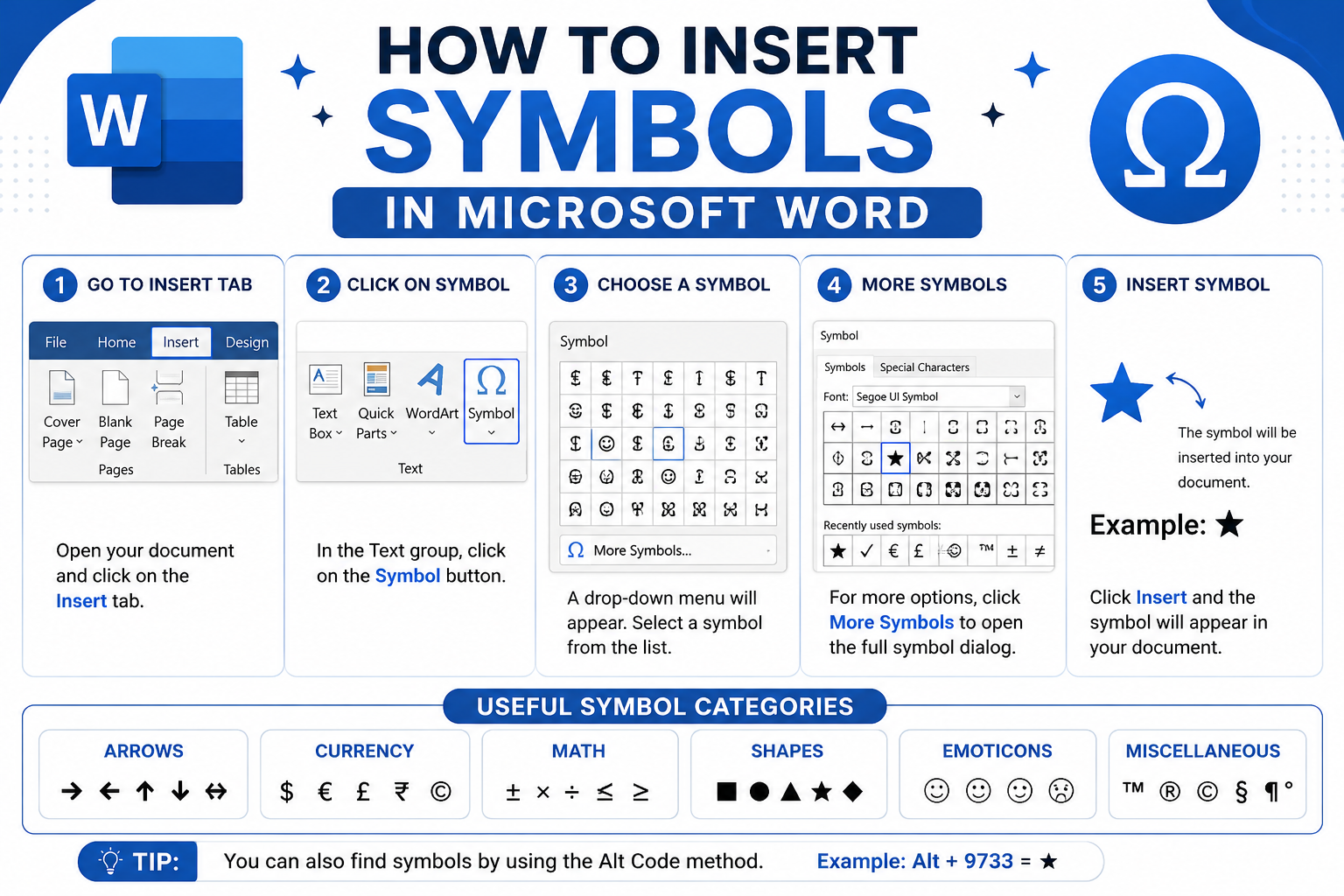
How to Insert Symbols in Word Using the Symbol Menu
The Symbol dialog is the only method that shows you what you are inserting before you insert it, and the only one that works without knowing a code. It is the right starting point when you are not sure what the character is called.
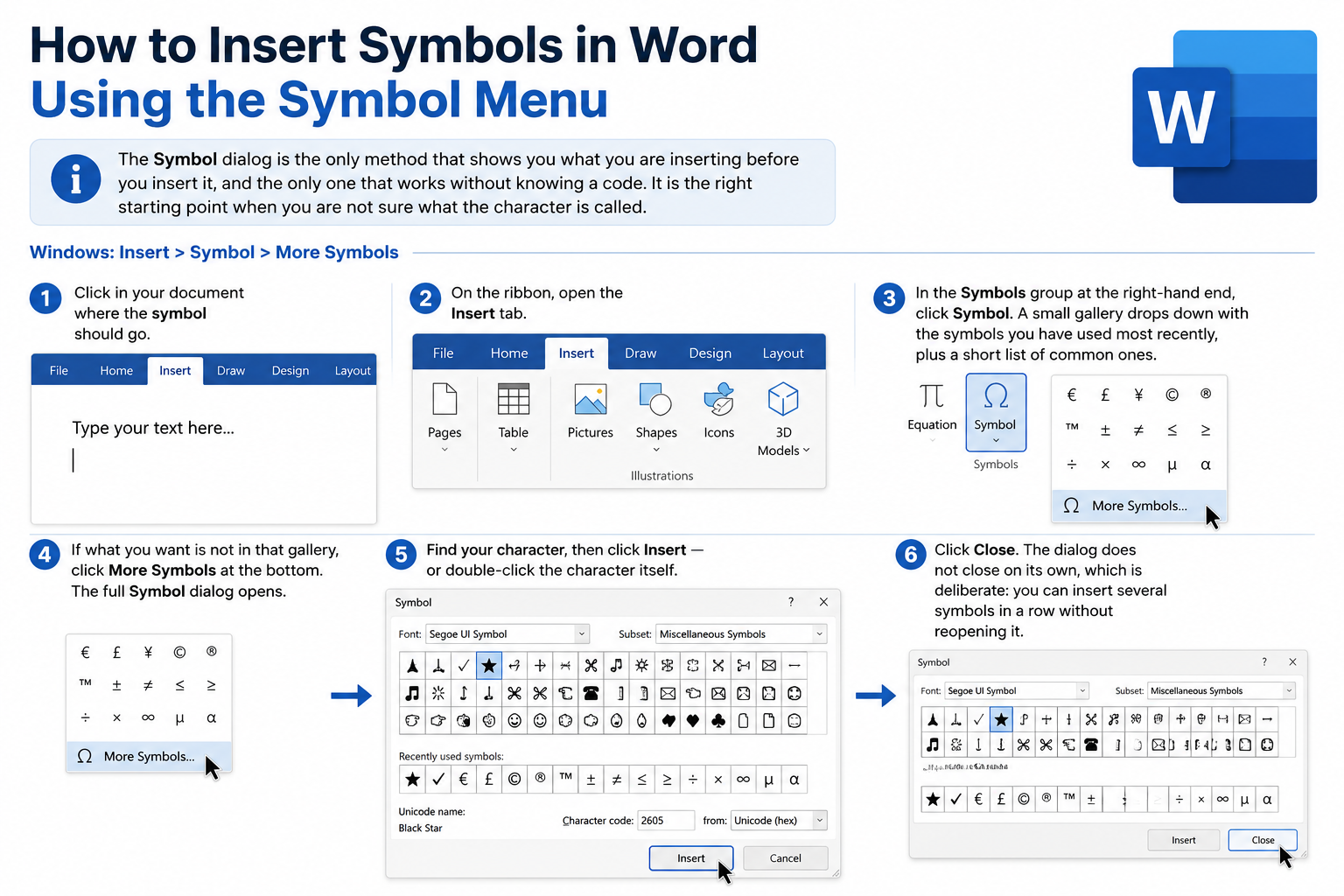
Windows: Insert > Symbol > More Symbols
- Click in your document where the symbol should go.
- On the ribbon, open the Insert tab.
- In the Symbols group at the right-hand end, click Symbol. A small gallery drops down with the symbols you have used most recently, plus a short list of common ones.
- If what you want is not in that gallery, click More Symbols at the bottom. The full Symbol dialog opens.
- Find your character, then click Insert — or double-click the character itself.
- Click Close. The dialog does not close on its own, which is deliberate: you can insert several symbols in a row without reopening it.
Choosing the right font in the dialog
The Font dropdown changes which characters are available, because a font only contains the glyphs its designer drew — Microsoft's own note is that different font sets often have different symbols in them. If a character is missing, the font is the first thing to change. Two settings are worth knowing: (normal text) keeps the symbol in whatever font your paragraph already uses, which is safest because the character travels with the text, and Segoe UI Symbol covers a very wide Unicode range on Windows.
Narrowing the list with Subset
With a Unicode font selected, a Subset dropdown appears beside it and jumps the list to a named Unicode block — Currency Symbols, Mathematical Operators, Arrows, General Punctuation. Fractions live under Number Forms. Not every font has every subset, so the list changes with the font.
Reading the Character code and "from:" boxes
At the bottom right of the dialog are two boxes: Character code and from:. Together they tell you exactly which character you have selected, and this is the one part of the dialog most guides skip over. When from: reads Unicode (hex), the number in the code box is a Unicode value — the same number you would type before pressing Alt+X. When it reads Symbol (Decimal), the number is a position inside that particular font, not a Unicode value. The difference matters more than it sounds, and the check marks section below shows exactly how it bites.
Assigning your own shortcut key
With a character selected, the Shortcut Key button opens Word's Customize Keyboard dialog, where you can bind that symbol to a combination of your own. Press the combination into the Press new shortcut key box and check the Currently assigned to line underneath before committing — Word warns you if you are about to overwrite something.
How to Copy and Paste Symbols into Word
Copy and paste is the fastest route for an occasional symbol, and the only one of the six that behaves identically on Windows, Mac, the browser and a phone. No code, no setup.
- Click the symbol you want from one of the tables further down this page, or from the symbol collections linked below. It goes to your clipboard.
- Click in your Word document where it belongs.
- Paste it: Ctrl+V on Windows, Cmd+V on Mac.
If the pasted symbol arrives in the wrong font or size
A symbol copied from a web page can bring that page's formatting with it. After pasting, click the small Paste Options button beside the character and choose Keep Text Only — the symbol then takes your document's own font and size. Pasting with Ctrl+Shift+V on Windows skips the extra click.
Read also: → Symbols: Browse and Copy Unicode Symbols by Category
How to Insert Symbols Using Alt Codes on Windows
An Alt code inserts a character by its number: hold Alt, type a decimal code on the numeric keypad, release Alt. Microsoft documents this as the way to type any ANSI character — and that word ANSI is the whole story, because it is why some symbols have an Alt code and others simply do not.
The numeric keypad requirement is not optional
The digits above the letters do not work. Only the separate number pad does, and Num Lock has to be on first — Microsoft states this directly. With Num Lock off the keypad sends arrow keys instead of digits, and nothing is inserted.
Why the leading zero matters
Alt+0169 gives © because 169 is the copyright sign's position in the Windows ANSI set. Alt+169, without the zero, reads the number against the much older MS-DOS code page and produces something else. Every Alt code on this page is written with the leading zero; typing it that way is the habit to keep.
The range is 128 to 255, and that is a hard limit
The ANSI set runs from 32 to 255, and 32 to 126 are already on your keyboard — so the useful range is 128 to 255, of which five slots carry no character at all. That is where every dash in the Alt code column below comes from: the character exists in Unicode but not in ANSI, so no Alt code exists for it. A table that offers one is wrong, and the next section explains exactly how.
Laptops without a numeric keypad
Microsoft's own advice for a keyboard with no number pad is to use Insert > Symbol > More Symbols instead. Some laptops have an embedded keypad reachable with Fn — look for small digits on the J, K, L, U, I, O keys — but this varies by manufacturer and many models have none. Alt+X and AutoCorrect are the other two routes that need no keypad.
How to Insert Unicode Characters Using Alt+X
Alt+X is the method that has no range limit. Type a character's hexadecimal Unicode value, press Alt+X, and Word replaces the code with the character. Microsoft's instruction is exactly that: to insert a Unicode character, type the character code, press ALT, then press X.
A worked example
- Type
20ACin your document. Nothing happens yet — it is just four characters of text. - Press Alt+X.
- The four characters are replaced by €.
The same pattern gives ≠ from 2260, → from 2192 and ✓ from 2713. Because it takes a Unicode value directly, Alt+X reaches any character Word can display, not just the 128 in the ANSI set.
When Alt+X converts the wrong thing
Alt+X works backwards from the cursor, and it does not know where your code starts. If the character immediately before the code is a digit or a letter A to F, Word may swallow it into the code and insert the wrong character. Microsoft's documented fix is to select the correct character code before pressing Alt+X, which forces Word to convert exactly what you highlighted. The other fix is to type U+ in front of the value — U+20AC rather than 20AC — which marks where the code begins.
Reverse lookup: finding out what a character is
Alt+X also runs in reverse: put the cursor immediately after a character, press Alt+X, and Word shows its Unicode value instead. Press again to turn it back. This is the quickest way to identify a character inherited in someone else's document — telling a real minus sign from a hyphen, say.
Where Alt+X does not work
Microsoft documents Alt+X on pages that list Word for Microsoft 365, Word 2024 and Word 2021 — the Windows desktop versions. It is not documented for Word for Mac or Word for the web, and Microsoft notes that some Office applications cannot convert Unicode codes to characters at all. Treat Alt+X as a Windows desktop feature and use the Symbol dialog or copy-paste elsewhere.
Alt Codes vs Unicode: the Difference That Breaks Most Symbol Tables
Getting this wrong is the most common error in symbol reference tables. A Windows Alt code is a decimal number from 0 to 255 identifying a slot in an 8-bit character set. A Unicode code point is a hexadecimal number identifying a character in a set of over a million. Different numbering systems, overlapping only in the first 256 slots.
So when a table tells you that ≠ is "Alt + 8800", it has quietly swapped systems mid-row. 8800 is the decimal form of U+2260 — a Unicode code point, written in the wrong base, offered under the wrong method's name. The ANSI set that Alt+0nnn addresses stops at 255. The correct route to ≠ is 2260 followed by Alt+X.
Word does blur the line in one documented place: Microsoft lists Alt+0256 through Alt+0363 for the macron letters Ā ā Ē ē Ī ī Ō ō Ū ū, which sit above 255 — so Word's handler reaches slightly further than the operating system's. That is documented for one specific set, not a general licence to treat any decimal Unicode value as an Alt code. On this page a symbol gets an Alt code only when it is genuinely in the Windows ANSI set, which is why 72 of the 141 have one and 69 show a dash.
Read also: → What Are Unicode Fonts and How Do Stylish Text Generators Work?
How to Insert Symbols Using AutoCorrect
AutoCorrect replaces a short text sequence with a symbol as you finish typing it: type (c) and Word turns it into ©. It needs the least memorising of the six, because the triggers read like what they produce.
Check what your own install actually has
The default list depends on your Word version and editing language, so look at yours rather than trust anyone's table. On Windows, go to File > Options > Proofing, click AutoCorrect Options, confirm Replace text as you type is ticked on the AutoCorrect tab, and scroll the list underneath — that list is the real answer for your machine. On Mac the same dialog is at Word > Preferences > AutoCorrect.
Entries most English installs ship with
| You type | Word inserts | Name |
|---|---|---|
(c) | © | Copyright sign |
(r) | ® | Registered trade mark |
(tm) | ™ | Trade mark sign |
... | … | Horizontal ellipsis |
--> | → | Rightwards arrow |
<-- | ← | Leftwards arrow |
==> | ⇒ | Rightwards double arrow |
<== | ⇐ | Leftwards double arrow |
Fractions and dashes are on a different tab
Typing 1/2 and getting ½ is not an AutoCorrect replacement, though almost every guide files it as one. It is a separate setting on the AutoFormat As You Type tab of the same dialog, and it covers only ¼, ½ and ¾ — the only three in the Windows ANSI set. Type 1/3 and nothing happens; for ⅓ use 2153 and Alt+X. Dashes live on that tab too: a double hyphen with no spaces becomes an em dash (—), a single hyphen with a space each side becomes an en dash (–). Both are formatting rules, so looking for them in the Replace list is a dead end.
Adding your own replacement
- Open File > Options > Proofing > AutoCorrect Options and stay on the AutoCorrect tab.
- In the Replace box, type the trigger. Pick something you would never type by accident —
\degorzzdegrather thandeg, which would fire inside the word "degree". - In the With box, paste the symbol itself.
- Click Add, then OK.
To remove an entry, select it in the same list and click Delete. To undo one unwanted replacement without touching the settings, press Ctrl+Z immediately after it happens — Word treats the replacement as its own undo step.
Microsoft Word Keyboard Shortcuts for Special Characters
Word ships with shortcuts for a handful of symbols and for every common accent. The accent ones are the useful half, because they follow a pattern you learn once.
Accented characters on Windows: the two-step pattern
These are not single chords: press the modifier combination, release it, then type the plain letter. Microsoft's own example is to hold Ctrl, Shift and ^, release, then type o — giving ô. The accent applies to whatever letter comes next, which is why one shortcut covers every vowel.
| Press, then release | Then type | You get | Accent |
|---|---|---|---|
Ctrl+` | the letter | à è ì ò ù À È Ì Ò Ù | Grave |
Ctrl+' | the letter | á é í ó ú ý Á É Í Ó Ú Ý | Acute |
Ctrl+Shift+^ | the letter | â ê î ô û Â Ê Î Ô Û | Circumflex |
Ctrl+Shift+~ | the letter | ã ñ õ Ã Ñ Õ | Tilde |
Ctrl+Shift+: | the letter | ä ë ï ö ü ÿ Ä Ë Ï Ö Ü Ÿ | Umlaut / diaeresis |
Ctrl+Shift+@ | a or A | å Å | Ring above |
Ctrl+Shift+& | a or A | æ Æ | Ligature |
Ctrl+Shift+& | o or O | œ Œ | Ligature |
Ctrl+Shift+& | s | ß | Eszett |
Ctrl+, | c or C | ç Ç | Cedilla |
Ctrl+' | d or D | ð Ð | Eth |
Ctrl+/ | o or O | ø Ø | Stroke |
Alt+Ctrl+Shift+? | — | ¿ | Inverted punctuation |
Alt+Ctrl+Shift+! | — | ¡ | Inverted punctuation |
For a capital, use the same shortcut and a capital letter: Ctrl+' then E gives É. If a shortcut produces the plain letter instead, your keyboard layout is almost certainly the reason — these assume the symbol sits on the key a US layout puts it on.
Built-in symbol shortcuts
| Shortcut | Symbol | Name |
|---|---|---|
Ctrl+Alt+C | © | Copyright sign |
Ctrl+Alt+R | ® | Registered trade mark |
Ctrl+Alt+T | ™ | Trade mark sign |
Ctrl+Alt+Shift+? | ¿ | Inverted question mark |
Ctrl+Alt+Shift+! | ¡ | Inverted exclamation mark |
Microsoft's support pages give Ctrl+Alt+C for © and Ctrl+Alt+T for ™. Ctrl+Alt+R for ® follows the same pattern and is widely documented elsewhere, but not on a current Microsoft page — if it does nothing on your install, check what is actually bound using the Symbol dialog's Shortcut Key button.
How to Insert Symbols in Word on Mac
Word for Mac is not Word for Windows with a different modifier key. The menu label differs, one of the six methods is missing entirely, and macOS supplies a character picker of its own that is often better than Word's.
Insert > Advanced Symbol
- Click where the symbol should go.
- Open the Insert menu and choose Advanced Symbol — not "Symbol", which is the label on Windows.
- Pick the Symbols tab, select your character, and click Insert.
- For dashes, typographic quotes and similar, use the Special Characters tab in the same dialog.
- Click Close.
The macOS Character Viewer is usually faster
macOS has a system-wide character picker that works in Word and every other app with a standard Edit menu, and it has something Word's dialog does not: search. Open it with Edit > Emoji & Symbols or the Globe (or Fn) key + E, type what you want — "degree", "copyright", "arrow" — and click the character. Searching by name beats scrolling a grid, especially for a symbol you can name but would not recognise in a list.
Accents by press-and-hold
You can also hold a letter key down: hold e and a small accent menu appears above the cursor — click the one you want or type the number under it. This is a macOS feature, not a Word one, so it behaves the same in Pages, Mail and your browser.
What is missing on Mac
- There is no Alt+X. Microsoft documents the hex-code-then-Alt+X method only for the Windows desktop versions of Word. Use the Character Viewer or copy and paste instead.
- The Alt+0nnn numeric keypad codes do not transfer. Mac keyboards use Option-key combinations, which are a macOS layout feature and differ between keyboard layouts.
- The menu label is Advanced Symbol, so any instruction that tells you to click Insert > Symbol was written for Windows.
How to Insert Symbols in Word for the Web
Word for the web can insert symbols, with a narrower set than the desktop app. Microsoft states it plainly: Word for the web has a limited selection of special characters available.
- Open the Insert tab.
- Choose Symbols > More Symbols.
- Pick a character and insert it.
If the character you need is not there, Microsoft's documented route is to switch to the desktop app: at the top of the ribbon, select Editing > Open in Desktop App. The document stays the same file; you just get the full Symbol dialog.
The faster alternative is copy and paste: a Unicode character pasted into Word for the web is a real character in the document and syncs to the desktop app and back unchanged. Alt codes, Alt+X and locally stored AutoCorrect entries are the ones that will not follow you into the browser.
Common Symbols You Can Insert in Microsoft Word
141 symbols in nine categories. Every Unicode value was checked against the character printed beside it, and every Alt code against the Windows ANSI set — a dash means the character genuinely is not in that set, not that the code was left out. Click any symbol or name to copy it.
Copyright and Trademark Symbols
Select any name in the following table to copy it.
| Symbol | Name | Unicode / Alt+X | Windows Alt code | AutoCorrect |
|---|---|---|---|---|
00A9 | Alt+0169 | (c) | ||
00AE | Alt+0174 | (r) | ||
2122 | Alt+0153 | (tm) | ||
00A7 | Alt+0167 | — | ||
00B6 | Alt+0182 | — | ||
2120 | — | — | ||
2117 | — | — |
Currency Symbols
Only five of the world's currency signs made it into the Windows ANSI set, which is why the rupee, ruble, won, lira, shekel, naira and dong have no Alt code. All of them are reachable with Alt+X.
Select any name in the following table to copy it.
| Symbol | Name | Unicode / Alt+X | Windows Alt code | AutoCorrect |
|---|---|---|---|---|
20AC | Alt+0128 | — | ||
00A3 | Alt+0163 | — | ||
00A5 | Alt+0165 | — | ||
00A2 | Alt+0162 | — | ||
00A4 | Alt+0164 | — | ||
20B9 | — | — | ||
20BD | — | — | ||
20A9 | — | — | ||
20BA | — | — | ||
20AA | — | — | ||
20A6 | — | — | ||
20AB | — | — |
Read also: → Currency Symbols to Copy and Paste
Mathematical Symbols
Only ± × ÷ µ ¬ are in the ANSI set; the rest are Unicode only. For a document full of equations, Word's Equation editor (Insert > Equation, or Alt+=) beats inserting operators one at a time, because it handles spacing and alignment for you.
Select any name in the following table to copy it.
| Symbol | Name | Unicode / Alt+X | Windows Alt code | AutoCorrect |
|---|---|---|---|---|
00B1 | Alt+0177 | — | ||
00D7 | Alt+0215 | — | ||
00F7 | Alt+0247 | — | ||
2260 | — | — | ||
2264 | — | — | ||
2265 | — | — | ||
2248 | — | — | ||
2261 | — | — | ||
221E | — | — | ||
221A | — | — | ||
2211 | — | — | ||
220F | — | — | ||
222B | — | — | ||
2202 | — | — | ||
2206 | — | — | ||
03C0 | — | — | ||
00B5 | Alt+0181 | — | ||
2205 | — | — | ||
2208 | — | — | ||
2234 | — | — | ||
00AC | Alt+0172 | — | ||
2220 | — | — | ||
2225 | — | — | ||
22A5 | — | — | ||
221D | — | — |
Read also: → Math Symbols to Copy and Paste
Arrows
No arrow is in the ANSI set, so none of them has an Alt code. Four of the most common ones have AutoCorrect triggers instead, which is usually the quickest route in running text.
Select any name in the following table to copy it.
| Symbol | Name | Unicode / Alt+X | Windows Alt code | AutoCorrect |
|---|---|---|---|---|
2192 | — | --> | ||
2190 | — | | ||
2191 | — | — | ||
2193 | — | — | ||
2194 | — | — | ||
21D2 | — | ==> | ||
21D0 | — | | ||
21D4 | — | — | ||
21B5 | — | — | ||
21E7 | — | — | ||
2794 | — | — | ||
27F6 | — | — |
Read also: → Arrow Symbol Copy and Paste → ← ↑ ↓ & More
Fractions
¼, ½ and ¾ exist as single ANSI characters and auto-format as you type; everything else is Unicode only. For a fraction with no precomposed character — 5/16, say — use the Equation editor rather than the fraction slash, which gives proper numerator and denominator formatting.
Select any name in the following table to copy it.
| Symbol | Name | Unicode / Alt+X | Windows Alt code | AutoCorrect |
|---|---|---|---|---|
00BD | Alt+0189 | 1/2 | ||
00BC | Alt+0188 | 1/4 | ||
00BE | Alt+0190 | 3/4 | ||
2153 | — | — | ||
2154 | — | — | ||
2155 | — | — | ||
215B | — | — | ||
215C | — | — | ||
215D | — | — | ||
215E | — | — | ||
2159 | — | — | ||
2044 | — | — |
Punctuation and Typography
This is the group most worth learning Alt codes for — the characters a careful document actually needs: a real em dash rather than two hyphens, curly quotes rather than straight ones, a proper ellipsis rather than three full stops. All but three of them have Alt codes; only the two prime marks and the modifier apostrophe are Unicode-only.
Select any name in the following table to copy it.
| Symbol | Name | Unicode / Alt+X | Windows Alt code | AutoCorrect |
|---|---|---|---|---|
2014 | Alt+0151 | — | ||
2013 | Alt+0150 | — | ||
2026 | Alt+0133 | ... | ||
201C | Alt+0147 | — | ||
201D | Alt+0148 | — | ||
2018 | Alt+0145 | — | ||
2019 | Alt+0146 | — | ||
00AB | Alt+0171 | — | ||
00BB | Alt+0187 | — | ||
2020 | Alt+0134 | — | ||
2021 | Alt+0135 | — | ||
00BF | Alt+0191 | — | ||
00A1 | Alt+0161 | — | ||
2030 | Alt+0137 | — | ||
2032 | — | — | ||
2033 | — | — | ||
00B7 | Alt+0183 | — | ||
2039 | Alt+0139 | — | ||
203A | Alt+0155 | — | ||
02BC | — | — |
Bullets and Check Marks
Only the plain bullet is in the ANSI set. The check marks, crosses and ballot boxes are all Unicode, and the next section explains why inserting one from the Wingdings font instead is the most common way to end up with a broken document.
Select any name in the following table to copy it.
| Symbol | Name | Unicode / Alt+X | Windows Alt code | AutoCorrect |
|---|---|---|---|---|
2022 | Alt+0149 | — | ||
25E6 | — | — | ||
25AA | — | — | ||
25B8 | — | — | ||
2023 | — | — | ||
2713 | — | — | ||
2714 | — | — | ||
2717 | — | — | ||
2718 | — | — | ||
2611 | — | — | ||
2610 | — | — | ||
2612 | — | — | ||
2605 | — | — | ||
2606 | — | — |
Read also: → Check Mark Symbols to Copy and Paste
Degree and Measurement Symbols
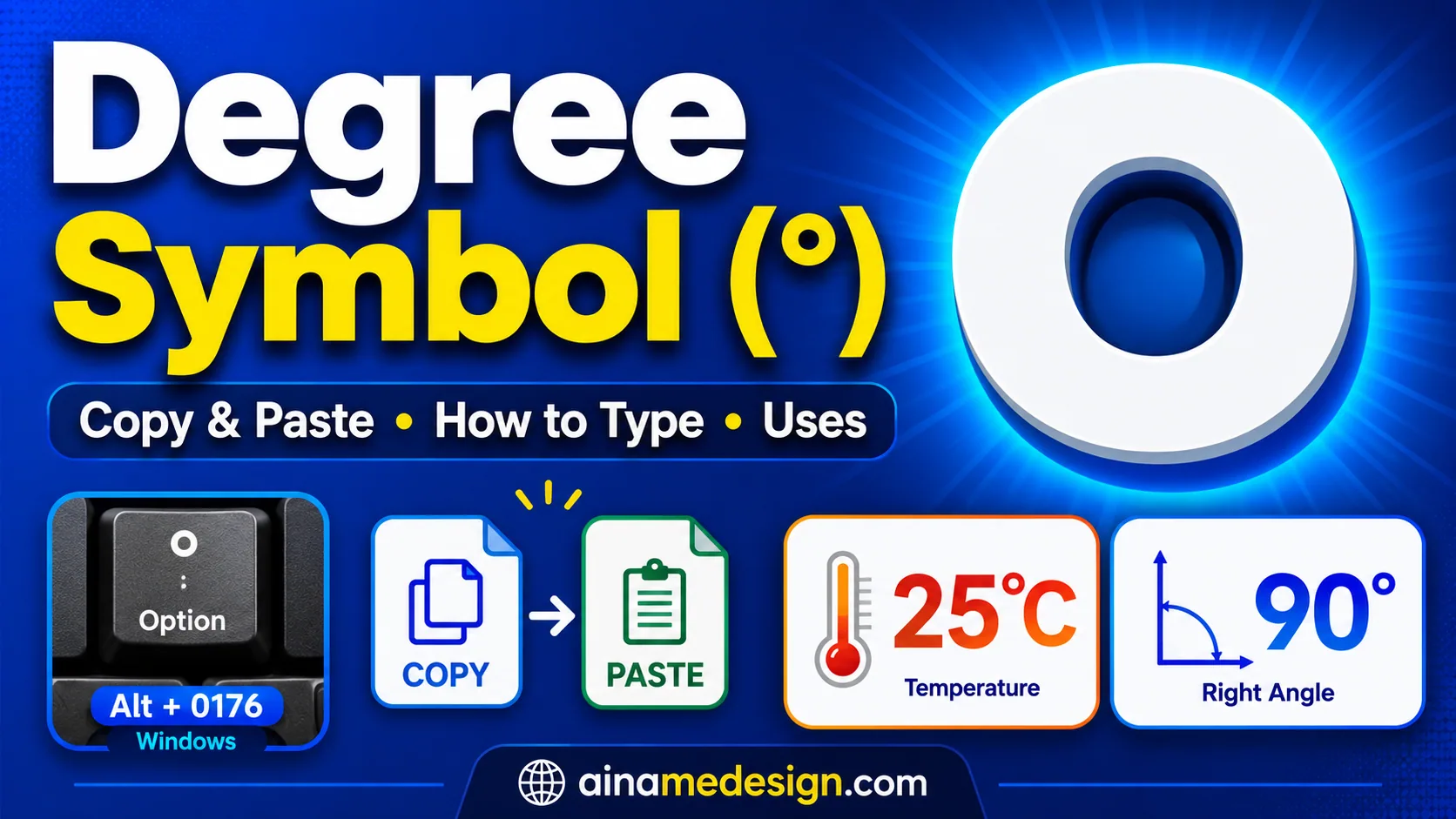
The degree sign is at Alt+0176; the precomposed ℃ and ℉ are not in the ANSI set. In running text the convention is a degree sign followed by a plain C or F rather than the single character — it sets better and does not depend on the font having that glyph.
Select any name in the following table to copy it.
| Symbol | Name | Unicode / Alt+X | Windows Alt code | AutoCorrect |
|---|---|---|---|---|
00B0 | Alt+0176 | — | ||
2103 | — | — | ||
2109 | — | — | ||
03A9 | — | — | ||
00C5 | Alt+0197 | — | ||
00D8 | Alt+0216 | — | ||
00B2 | Alt+0178 | — | ||
00B3 | Alt+0179 | — | ||
00B9 | Alt+0185 | — |
Read also: → Degree Symbol (°): Copy and Paste, How to Type & Uses
Accented Characters
All of these are in the ANSI set, so all of them have an Alt code — and all of them are also covered by the two-step shortcuts in the table further up, which are faster once the pattern is in your fingers.
Select any name in the following table to copy it.
| Symbol | Name | Unicode / Alt+X | Windows Alt code | AutoCorrect |
|---|---|---|---|---|
00E9 | Alt+0233 | — | ||
00E8 | Alt+0232 | — | ||
00EA | Alt+0234 | — | ||
00EB | Alt+0235 | — | ||
00E1 | Alt+0225 | — | ||
00E0 | Alt+0224 | — | ||
00E2 | Alt+0226 | — | ||
00E4 | Alt+0228 | — | ||
00E5 | Alt+0229 | — | ||
00E3 | Alt+0227 | — | ||
00ED | Alt+0237 | — | ||
00EE | Alt+0238 | — | ||
00EF | Alt+0239 | — | ||
00F3 | Alt+0243 | — | ||
00F4 | Alt+0244 | — | ||
00F6 | Alt+0246 | — | ||
00F5 | Alt+0245 | — | ||
00F8 | Alt+0248 | — | ||
00FA | Alt+0250 | — | ||
00FB | Alt+0251 | — | ||
00FC | Alt+0252 | — | ||
00F1 | Alt+0241 | — | ||
00E7 | Alt+0231 | — | ||
00DF | Alt+0223 | — | ||
00E6 | Alt+0230 | — | ||
0153 | Alt+0156 | — | ||
00FF | Alt+0255 | — | ||
00FD | Alt+0253 | — | ||
00F0 | Alt+0240 | — | ||
00FE | Alt+0254 | — |
Check Marks and the Wingdings Trap
If you have ever inserted a check mark and later found a ü in its place, here is why. Microsoft's own check mark instructions offer two routes: Wingdings at character code 252, or Segoe UI Symbol at hex 2713, 2714 or 2705. Both put a tick on the page, and they are not the same thing at all.
Wingdings 252 is a position in the Wingdings font. The character stored in your document is the one at slot 252 of the ANSI set — ü — and it only looks like a tick because Wingdings is applied over it. Change that text to Calibri, or send the file to someone whose system substitutes another font, and the tick becomes ü. Nothing is corrupted: the character was always ü, wearing a costume. Segoe UI Symbol 2713, by contrast, is the Unicode character U+2713 CHECK MARK — a tick in every font that contains it, and still a tick after a font change, a PDF export, or a screen reader.
The rule: use the Unicode check marks (✓ ✔ ☑) above, and reach for Wingdings only when you want a decorative glyph and know the font will stay put. The same caution covers the Symbol font, where the Greek letters are font positions rather than real Greek characters — which is why a π inserted from Symbol will not be found by a search for π.
How to Fix Symbols That Appear as Squares or Question Marks
A symbol showing as an empty box (▯), a box with digits in it, or a question mark is almost never a broken file — it is a font without that character. Which of five things is happening decides the fix.
The font has no glyph for that character
The usual cause. Most text fonts cover a few hundred of Unicode's 150,000-plus characters. Select the character and change its font to Segoe UI Symbol on Windows or Apple Symbols on Mac. If that fixes it, the character was fine all along.
The font changed after the character was inserted
If the character came from a symbol-encoded font and the font later changed, you get whatever that byte means in the new one. Undo the font change, or replace the character with its Unicode equivalent so it stops depending on the font at all.
The document is using a theme font that is missing on this computer
If a document uses a font that is not installed on the machine opening it, Word substitutes another — and the substitute may lack the same symbols. Check the font name in the Home tab: if it renders in a different typeface from the text on screen, substitution is happening. Embedding the font (File > Options > Save > Embed fonts in the file) prevents it for documents you send out.
The character arrived through a conversion
Text pasted from a PDF, or imported with the wrong encoding, can arrive already broken — the classic sign is ’ where an apostrophe belongs, a UTF-8 apostrophe read as ANSI. No font change fixes it, because those really are the characters in the file now. Retype, or re-paste from the original source.
It renders in Word but not where you sent it
A character that displays correctly in your document can still fail on a phone, in an email client or on a website, because the device at the other end needs the glyph too. It is the same problem that makes stylish Unicode text unreliable in social media bios, with the same answer: stay with widely supported characters when the destination is out of your control.
Read also: → Why Some Stylish Fonts Do Not Display Correctly on Every Device
Which Method Should You Use?
All six methods insert the same characters. What separates them is where they work and how much they cost you up front.
| Method | Windows desktop | Mac | Word for the web | Best for |
|---|---|---|---|---|
| Symbol dialog | Yes | Yes, as Advanced Symbol | Yes, limited set | Browsing when you do not know the character's name or code |
| Copy and paste | Yes | Yes | Yes | Any symbol, any version, no setup — the universal fallback |
| Alt code (Alt+0nnn) | Yes, numeric keypad required | No | No | The 128 ANSI characters, typed often, on a full-size keyboard |
| Unicode + Alt+X | Yes | Not documented | Not documented | Any Unicode character when you know its hex value |
| AutoCorrect | Yes | Yes | Built-in entries only | A handful of symbols you use constantly |
| Keyboard shortcuts | Yes | Partly, layout dependent | Partly | Accented characters in another language |
- Need it once? Copy and paste. It works everywhere and costs nothing to learn.
- Need it ten times a day on Windows? Learn the Alt code if the character has one, or add an AutoCorrect entry if it does not.
- Writing in French, Spanish, German or Portuguese? Learn the five accent shortcuts. They cover every vowel and you only learn them once.
- Not sure what the character is called? The Symbol dialog on Windows, or the Character Viewer's search field on Mac.
- Working in the browser or on a phone? Copy and paste. The desktop-only methods will not follow you there.
Frequently Asked Questions
How do I insert a symbol in Microsoft Word?
On Windows, place the cursor where you want it, go to the Insert tab, click Symbol, and choose a character from the gallery — or click More Symbols for the full dialog. On Mac, the menu is Insert > Advanced Symbol. In Word for the web, it is Insert > Symbols > More Symbols with a narrower selection. If you already have the symbol somewhere, copying and pasting it is faster than any of these and works in every version.
What is the shortcut for inserting symbols in Word?
There is no single shortcut that opens the Symbol dialog. What Word has instead is per-symbol shortcuts: Ctrl+Alt+C for ©, Ctrl+Alt+T for ™, and the two-step accent shortcuts such as Ctrl+' then e for é. You can also create your own — select a character in the Symbol dialog, click Shortcut Key, and bind it to a combination you choose.
How do I insert special characters without a numeric keypad?
Alt codes are the only method that needs a numeric keypad, and three others do not. Use Insert > Symbol > More Symbols, which is Microsoft's own recommendation for keyboards without a number pad; use Alt+X with the character's hex code; or copy and paste the character. Some laptops have an embedded keypad on the J, K, L, U, I, O keys reachable with an Fn key, but this varies by manufacturer and many models have none.
How do I insert Unicode characters in Word?
Type the character's hexadecimal Unicode value and press Alt+X. Typing 20AC then Alt+X gives €; 2713 then Alt+X gives ✓. If Word converts the wrong thing, select just the code before pressing Alt+X, or type U+ in front of it. Alt+X is documented for the Windows desktop versions of Word; on Mac and in the browser, use the Symbol dialog or paste the character.
How do I insert the copyright symbol in Word?
Four ways, all giving the same character. Type (c) and let AutoCorrect convert it. Press Ctrl+Alt+C. Hold Alt and type 0169 on the numeric keypad. Or type 00A9 and press Alt+X. The copyright sign is U+00A9, and all four routes produce exactly that character — there is no quality difference between them.
How do I insert a degree symbol in Word?
Hold Alt and type 0176 on the numeric keypad, or type 00B0 and press Alt+X. In the Symbol dialog it is in the Latin-1 Supplement subset. For temperatures, the usual convention is a degree sign followed by a plain C or F — 25°C — rather than the single ℃ character, because ℃ is not in the ANSI set and depends on the font having that glyph.
How do I insert symbols in Word on Mac?
Use Insert > Advanced Symbol, not Insert > Symbol — the menu label is different from Windows. The Symbols tab holds general characters and the Special Characters tab holds dashes and quotes. Often faster is the macOS Character Viewer: press the Globe or Fn key with E, or choose Edit > Emoji & Symbols, then search by name. Alt+X is not available in Word for Mac.
Can I insert symbols in Word Online?
Yes, through Insert > Symbols > More Symbols, but Microsoft states that Word for the web has a limited selection of special characters available. If your character is missing, either paste it in — a pasted Unicode character works perfectly in the browser version — or use Editing > Open in Desktop App at the top of the ribbon to get the full dialog. Alt codes and Alt+X are desktop features and do not work in the browser.
Why does Word show a square instead of a symbol?
The font being used has no glyph for that character, so Word draws a placeholder box. Select the character and change its font to Segoe UI Symbol on Windows or Apple Symbols on Mac. If the box appeared after you changed fonts, the character probably came from Wingdings or Symbol, where the code is a position in that font rather than a real character — replace it with the Unicode equivalent so it stops depending on the font.
Can I copy symbols from a website into Word?
Yes, and it is the most reliable method there is. A Unicode character pasted into Word is a real character in the document: searchable, screen-reader readable, and intact through a PDF export. If it arrives in the wrong font or size, click the Paste Options button that appears and choose Keep Text Only, or paste with Ctrl+Shift+V to strip the formatting as you go.
The Short Version
Six methods, and most people need two. Copy and paste handles everything, everywhere, with nothing to set up. Insert > Symbol > More Symbols on Windows, or Insert > Advanced Symbol on Mac, is for browsing what is available. The other four — Alt codes, Alt+X, AutoCorrect and the accent shortcuts — are speed upgrades for the characters you type over and over.
One habit outlasts all the shortcuts: when a symbol matters, check the from: box and insert the Unicode version rather than a font position. A Unicode character survives a font change, a PDF export and a trip to someone else's computer. A font position does not. Every symbol on this page is one click from your clipboard, and the full symbol collection has thousands more by category.
Unicode Symbols — Copy and Paste 400+ Symbols Free | AI Name Design